Multi-browser configuration via .runsettings files
How to configure multi-browser tests application using .runsettings files.
Prerequisites
Create a new Atata NUnit basic test project using the guide.
Drivers for Chrome and Firefox in this tutorial are setup using Atata.WebDriverSetup package.
Global fixture
A configuration of web drivers as well as other common configurations of Atata can be done in GlobalFixture class.
You can add many web driver configurations to WebDriverSessionBuilder and switch dynamically between them using UseDriver method.
In this example we configure 3 browser kinds: Chrome, headless Chrome, Firefox.
For headless Chrome we specify the "chrome-headless" alias to distinguish it from the headed Chrome, which has "chrome" alias by default.
GlobalFixture.cs
namespace AtataSamples.MultipleBrowsersViaRunSettings;

public sealed class GlobalFixture : AtataGlobalFixture
{
    protected override void ConfigureAtataContextBaseConfiguration(AtataContextBuilder builder)
    {
        string webDriverAlias = Environment.GetEnvironmentVariable("WebDriverAlias") ?? WebDriverAliases.Chrome;

        builder.Sessions.AddWebDriver(x => x
            .UseStartScopes(AtataContextScopes.Test)
            .ConfigureChrome(x => x
                .WithArguments(
                    "start-maximized",
                    "disable-search-engine-choice-screen")
                .WithArtifactsAsDownloadDirectory())
            .ConfigureChrome("chrome-headless", x => x
                .WithArguments(
                    "headless=new",
                    "window-size=1920,1080",
                    "disable-search-engine-choice-screen")
                .WithArtifactsAsDownloadDirectory())
            .ConfigureFirefox()
            .UseDriver(webDriverAlias)
            .UseBaseUrl("https://demo.atata.io/"));
    }

    protected override void ConfigureGlobalAtataContext(AtataContextBuilder builder) =>
        builder.SetUpWebDriversForUse();
}
Here, the "WebDriverAlias" environment variable is read.
Then this value is passed to UseDriver method of WebDriverSessionBuilder in order to use configuration of the driver defined with this alias.
Configuration of .runsettings files
For each browser configuration that we support, we need to create a separate .runsettings file, to be able to easily switch configurations in IDE as well as use in CI pipelines.
Find out more information on .runsettings file and how to use it in Visual Studio on Configure unit tests by using a .runsettings file article.
Chrome.runsettings
<?xml version="1.0" encoding="utf-8"?>
<RunSettings>
  <RunConfiguration>
    <EnvironmentVariables>
      <WebDriverAlias>chrome</WebDriverAlias>
    </EnvironmentVariables>
  </RunConfiguration>
</RunSettings>
Chrome-headless.runsettings
<?xml version="1.0" encoding="utf-8"?>
<RunSettings>
  <RunConfiguration>
    <EnvironmentVariables>
      <WebDriverAlias>chrome-headless</WebDriverAlias>
    </EnvironmentVariables>
  </RunConfiguration>
</RunSettings>
Firefox.runsettings
<?xml version="1.0" encoding="utf-8"?>
<RunSettings>
  <RunConfiguration>
    <EnvironmentVariables>
      <WebDriverAlias>firefox</WebDriverAlias>
    </EnvironmentVariables>
  </RunConfiguration>
</RunSettings>
Each .runsettings file sets the "WebDriverAlias" environment variable with a value
corresponding to the "alias" of driver configuration defined in GlobalFixture class.
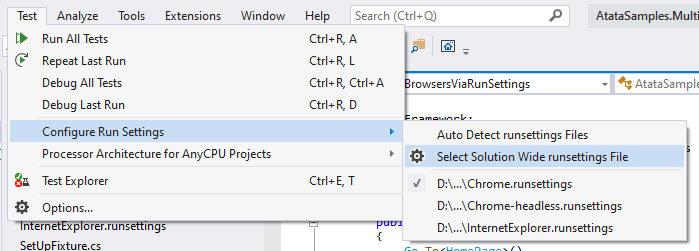
Usage in Visual Studio
To select/switch current .runsettings file in Visual Studio:
Usage in CI/CD
In order to run tests on CI using concrete browser, use -s parameter of dotnet test command to specify a .runsettings file.
dotnet test ./AtataSamples.MultipleBrowsersViaRunSettings.csproj -s Chrome-headless.runsettings